Import your existing contacts and leads
Updated 26 Aug 2026
Everyone you have already quoted, enquired with or worked for can come across in one go. It is the same importer for people and for past bookings — it works out which is which from the file.
Where to find it
Main nav → Events → People → Import CSV
People sits under Events in the main nav. Hover the Events icon in the left-hand bar and it is the fifth item down.
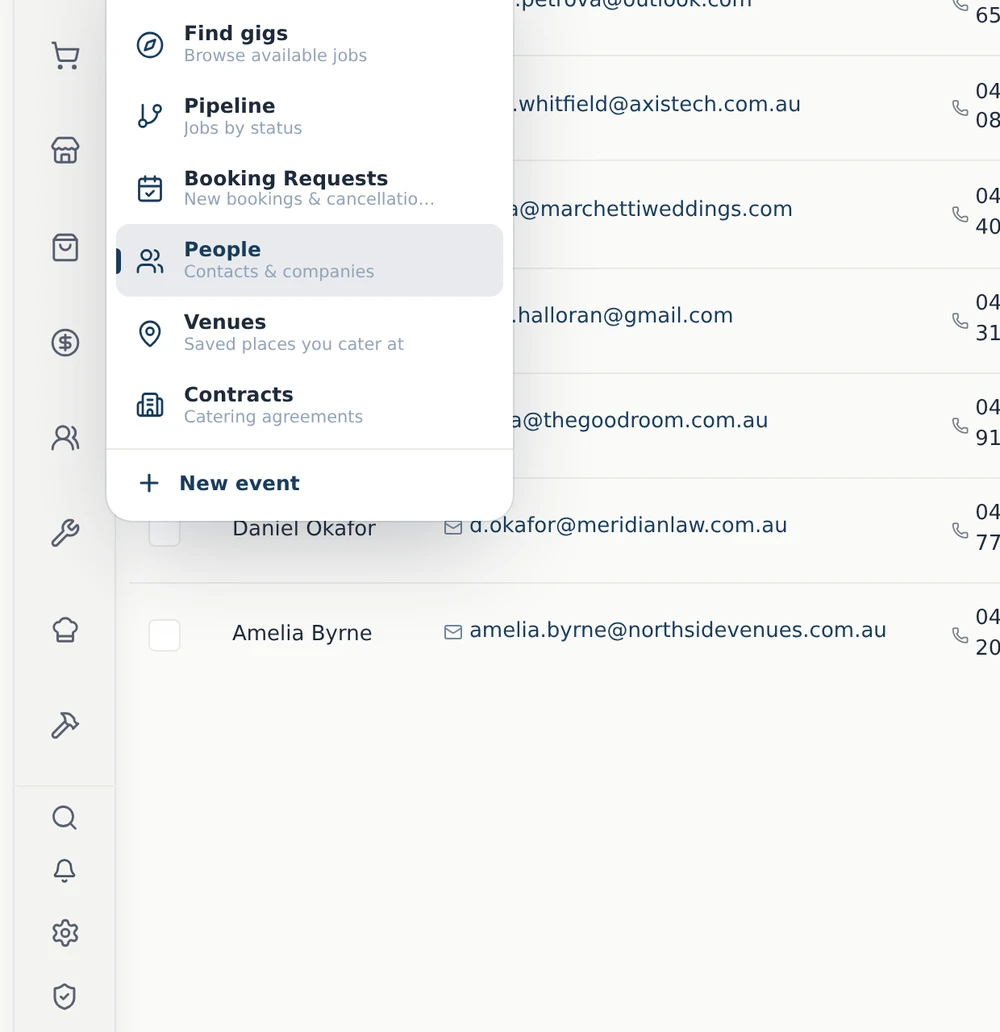
Import CSV and Import via AI are at the top right of the People page. They open the same importer.

Step by step
- Export your contacts from wherever they live now — a spreadsheet, your old CRM, your website's contact list, your email. Name, email and phone are enough; extra columns are a bonus.
- Click Import CSV and drop the file in.
- Check the columns it worked out for you, then read the preview — it tells you how many contacts are new and how many already exist, before anything is saved.
- Choose Add only to skip anyone already in there, or Add and update to let your file overwrite what is on file. Either way, matching is done on email address.
- Commit.
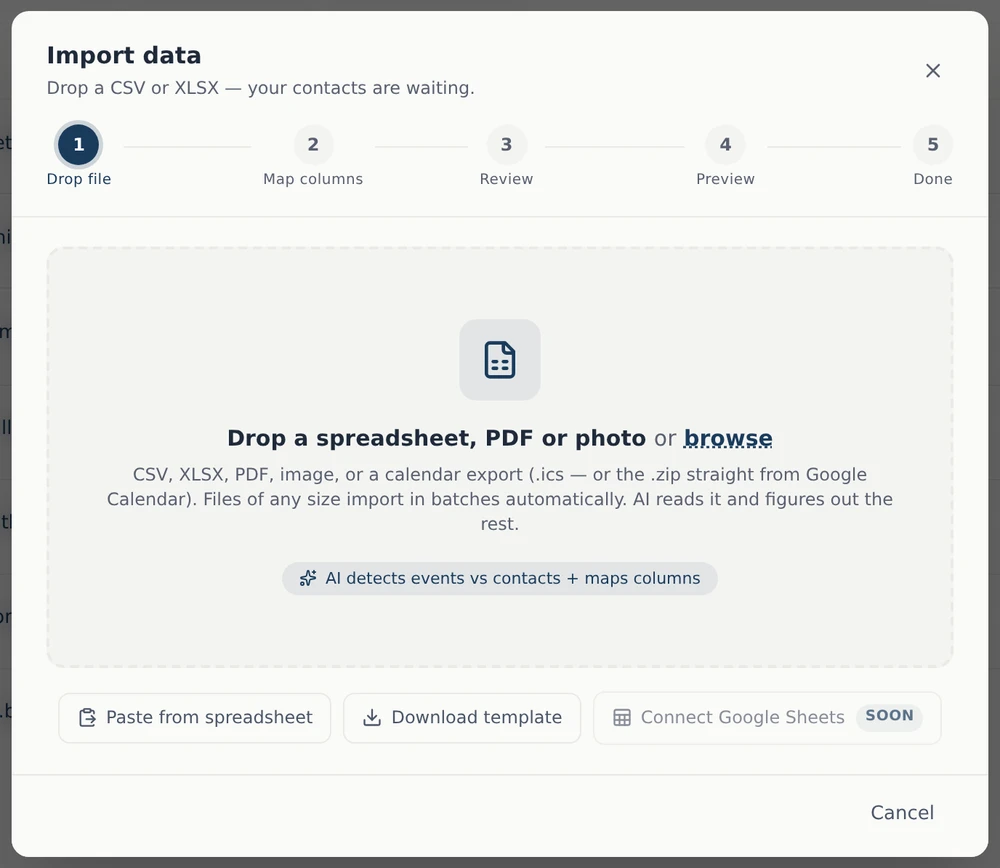
Whatever shape your list is in
The importer reads:
- Spreadsheets — CSV and XLSX
- PDFs
- Photos and screenshots of a list
- Calendar exports — an
.icsfile, or the.zipstraight from Google Calendar
Files of any size import in batches automatically. The AI reads the file and works out the columns, so nothing needs tidying up first.
No file at all? Paste from spreadsheet takes copied rows straight from Excel or Google Sheets. Starting from scratch? Download template gives you the right columns.
You can undo the whole thing
Every import is saved as a single batch. If it goes in wrong, undo the batch in one click rather than deleting contacts one at a time.
Past bookings and events
Same importer, from the Events page. The AI works out whether a row describes a person or a job, so a mixed file is fine.
Common questions
Will it create duplicates? Not if you choose Add only — anyone whose email already exists is skipped. Matching is on email address, so a contact with no email cannot be matched and will be added as new.
What if my file has extra columns we don't use? Leave them. Unmapped columns are ignored.
Can I import the same file twice? Yes. On the second run everyone is matched, so Add only skips them all and Add and update refreshes their details.
Still stuck? Open the chat assistant (bottom-right) for help with your specific setup.